Lux

by Zan Laucius
Template Setup Guide
Updated June 23, 2026
Introduction
Thank you for purchasing the Lux Template by Zan Creative.
This documentation is here to help you set up, customize, and get the most out of your new website.
Don’t have the template yet? Purchase it here.
Getting Started
To get started customizing your template, you'll need a Framer account—a free plan works fine. From there, this guide will walk you through everything in order. Follow each step and you'll have your site live faster than you'd expect.
Home
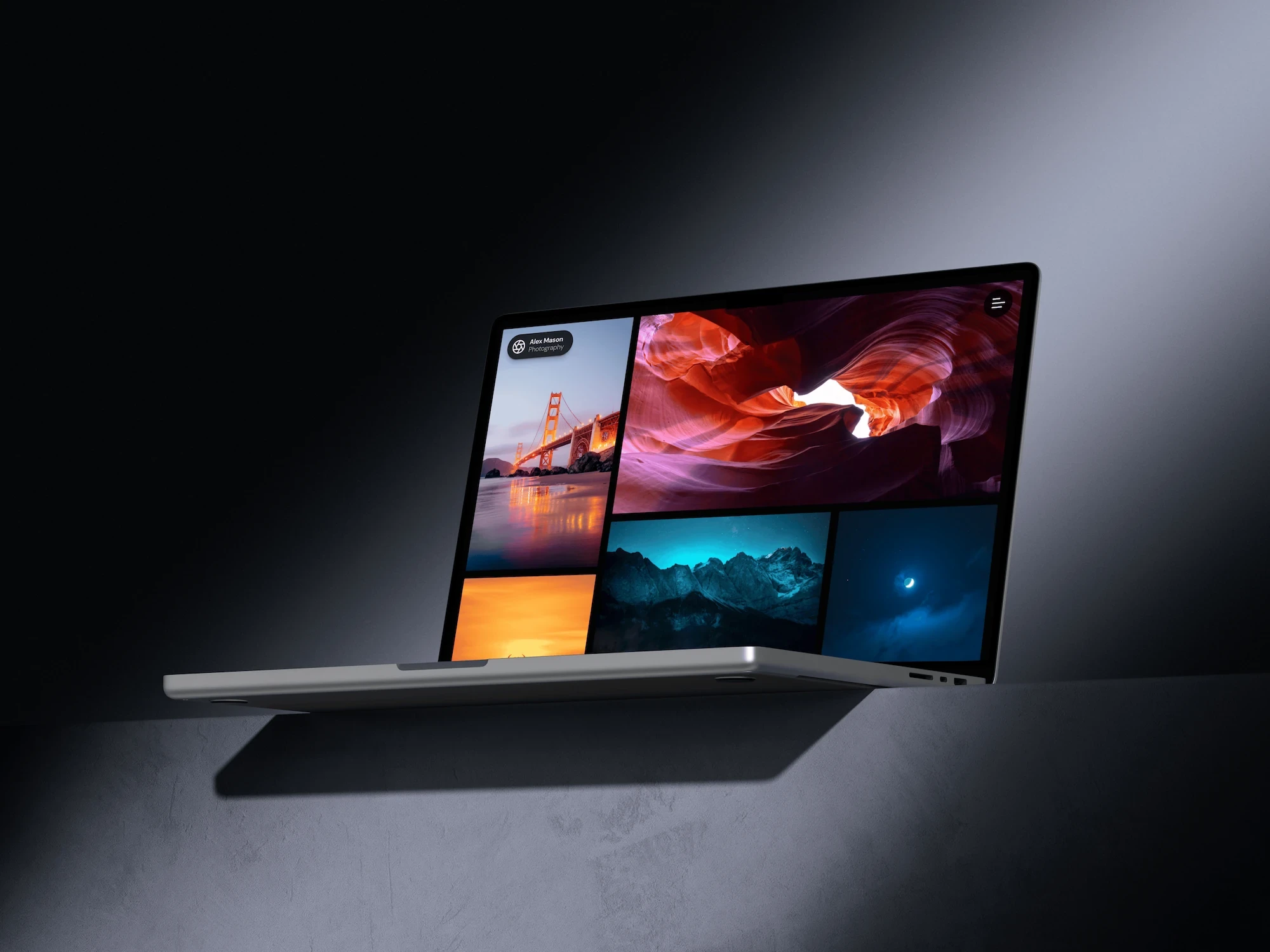
To customize the home page, begin by replacing all images within the dynamic grid, which is seen when the site first loads.
Select a photo, then on the right panel under Styles > Fill, select Choose Image to upload a new image. If you're using a photo with a different aspect ratio than the one you're replacing, click on the blue lock icon to unlock aspect ratio and adjust the height as needed. Click the lock icon again when you're done.
Next, you'll need to edit the GalleryPhoto components on the main grid. Each of these displays a photo and links to a CMS page.
Replace the photo for the GalleryPhoto component and then go to the linked CMS page for the component.
Edit the CMS data to match the GalleryPhoto image and title.
Repeat this for all of the photos you'd like to add.
Prints
Begin by editing the framed photos shown when the page is first loaded - these are shown to the left of the Desktop frame.
Next, go through and replace the images in the print wall section with your own photos. Replace the default links with a unique link to buy a print for each photo.
Blog
To customize the blog, you'll need to customize the BlogCard components shown on the page. After editing these components, go to the CMS item linked to each of them.
Edit the CMS information to match each BlogCard shown on the main Blog page.
Gear
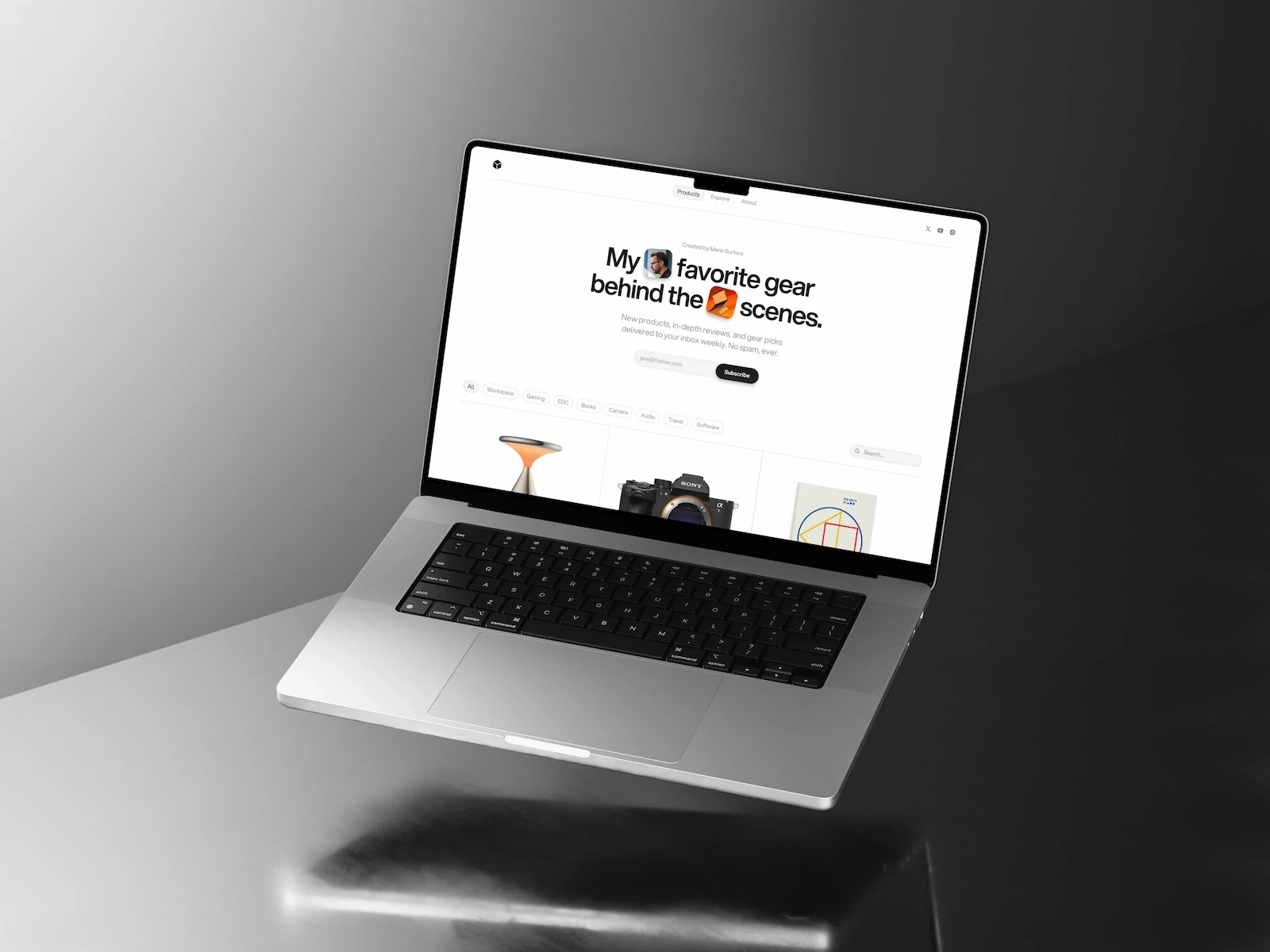
For this page, you'll need to customize each GearCard component. Replace the data within each component and add transparent PNG images to beautifully showcase your gear.
Courses
To edit this page, begin by customizing the CourseCard components. Each component links to a course page. After editing a CourseCard, go to the linked page and edit the information to match the CourseCard.
Presets
First, edit each PresetCard components with a cover image, title, price and preview text. Each component links to its own preset page - go to each linked page and edit the page's cover image and title to match the PresetCard.
About
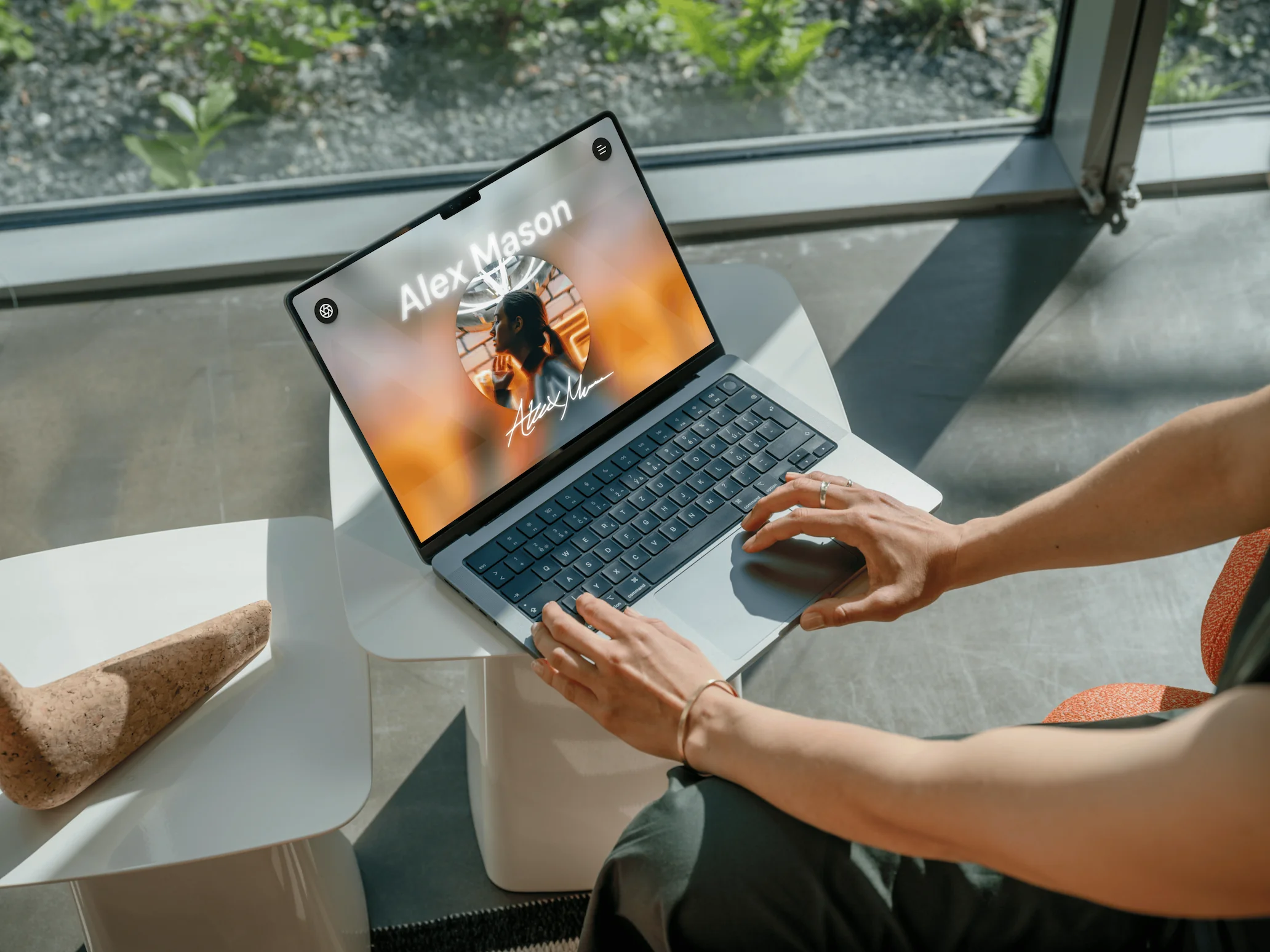
Begin by replacing the first image shown with an image of your choice. Replace the Background image within BGBlur with the same image.
Replace the name and subtext and resize the font as needed.
Go through all other images and replace them with your own. Near the bottom of the page, replace the text and the scrolling social links.
Camera & Lenses
Within Gallery Pages (CMS):
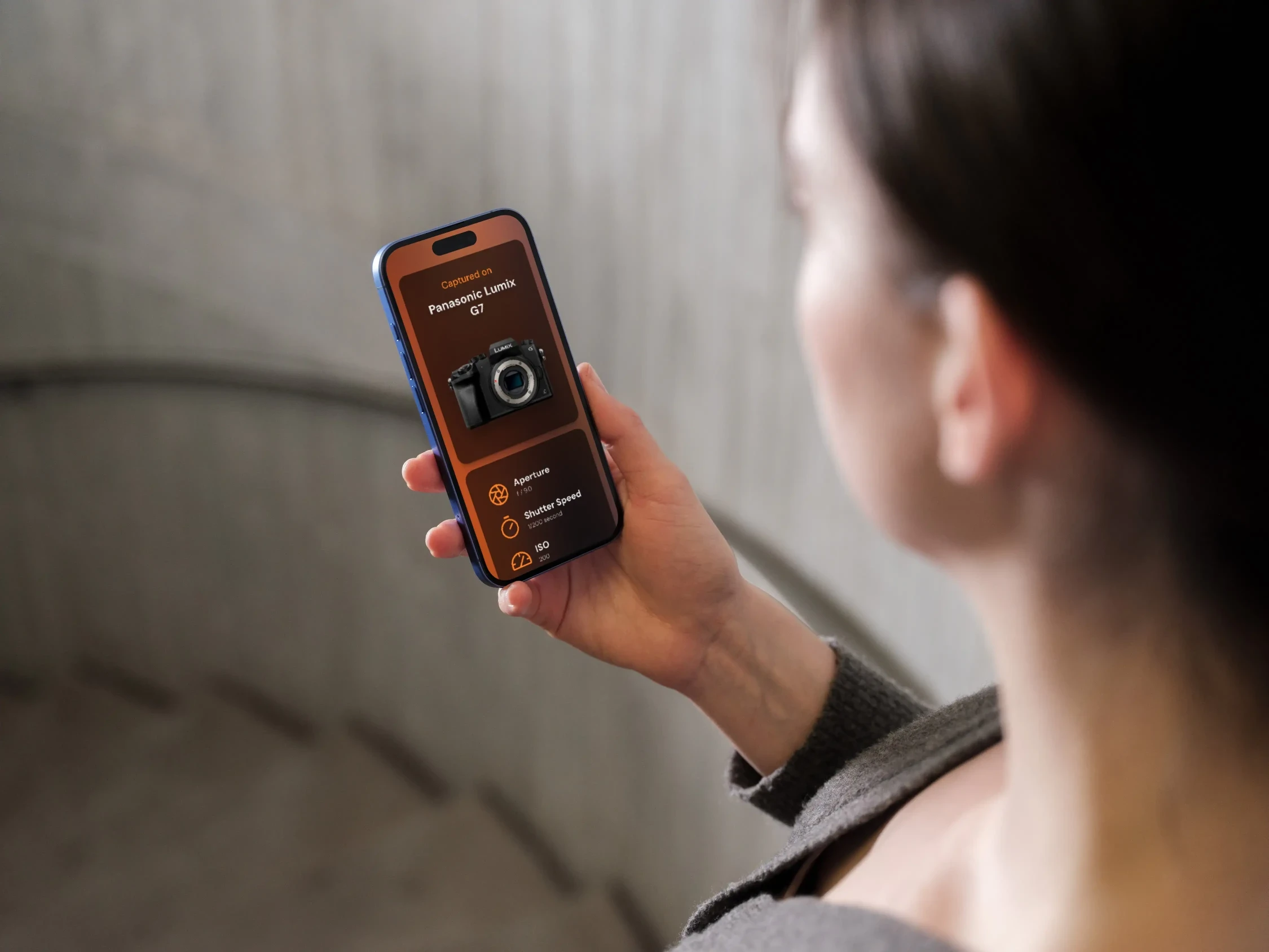
To display your camera and lens used to take each photo, replace the existing images with your own. PNGs with a transparent background are recommended.
Edit the Gallery CMS Fields for Camera and Lens, renaming the dropdown options to the names of your camera(s) and lens(es).
Based on the conditions set for each image, the images should only display if a given photo's CMS contains that camera and lens.
Globe
This one can be a bit tricky due to limitations using CMS and the globe component.
To use the Globe component for any given photo CMS item, you'll need to setup a globe with the general location coordinates for each of your photos. Photos taken in the same general location can use the same globe component.
Within Gallery Pages (CMS), you'll see a stack containing a bunch of different globe components. All globe components here are identical apart from the coordinates given.
Pick a globe on the layers panel, then click on Visible - Conditions in the Styles section on the right side. Here, you will see that the globe will only be visible if the CMS field "GlobeLocation" matches the given keyword.
Simply edit this keyword to match the GlobeLocation keyword specified in your photo's CMS, and that globe will show up only for that specific photo. To have multiple photos use the same globe, you can use the same GlobeLocation keyword for other photos in the CMS.
No two globes should check for the same keyword; this ensures that only one globe is visible for any given page.
To change the location coordinates, on the right panel, click on Globe > Location. From here, you can input the Longitude and Latitude coordinates or use the slider to adjust the location.